
Blogs
Blog 1
How to Choose the Right Laptop in Nigeria in 2026: A Complete Buyer’s Guide
Buying a laptop in Nigeria can be confusing, especially when you have to choose between different processor generations, RAM sizes, storage capacities, and prices. With so many options available, it is easy to spend more than necessary or purchase a laptop that does not meet your needs.
Whether you are a student, business owner, professional, or content creator, choosing the right laptop starts with understanding what you need it to do.
At Acetech Global Solutions, we believe that the best laptop is not necessarily the most expensive one. It is the one that delivers the right balance of performance, reliability, and value for your money.
Here is what you should consider before making your next laptop purchase.
- Determine What You Need the Laptop For
Before comparing specifications, identify your primary purpose for buying a laptop.
For students: A laptop with a capable processor, 8GB or 16GB RAM, and SSD storage can handle research, assignments, presentations, online classes, and everyday academic activities.
For business owners and office professionals: Prioritise dependable performance, multitasking capability, a comfortable keyboard, good battery life, and features that support video conferencing and productivity.
For graphic designers and content creators: Consider at least 16GB RAM, a capable modern processor, a colour-accurate display, and sufficient storage. Demanding video editing and 3D applications may also require a dedicated graphics card.
For gaming and demanding applications: Look for a dedicated GPU where necessary, adequate cooling, sufficient RAM, and a display suited to your preferred games or applications.
Knowing your intended use helps you avoid paying for specifications you may never need.
- Understand Core i5, Core i7, and Processor Generations
One of the most common mistakes laptop buyers make is assuming that every Core i7 laptop is better than every Core i5 laptop.
That is not always true.
A newer Core i5 processor can outperform an older Core i7 in certain applications. Performance depends on the processor generation, exact model, power limits, cooling system, and the task being performed.
When comparing laptops, check the exact processor model rather than relying solely on the Core i5 or Core i7 label.
For example, someone purchasing a laptop for office work may find a newer Core i5 system more suitable than an older Core i7 model.
The goal is to purchase the right performance level for your workload and budget.
- How Much RAM Do You Need?
RAM determines how comfortably your laptop handles multiple applications simultaneously.
Here is a simple guide:
- 8GB RAM: Suitable for basic office work, browsing, online classes, and light multitasking.
- 16GB RAM: A strong choice for most professionals, business users, students, and everyday multitasking.
- 32GB RAM or more: Worth considering for demanding creative applications, virtual machines, specialised professional software, and intensive workloads.
If your work involves keeping multiple browser tabs, spreadsheets, communication applications, and other programmes open simultaneously, 16GB RAM is a sensible starting point.
Also check whether the RAM can be upgraded later, particularly when purchasing a laptop you intend to use for several years.
- Choose SSD Storage Over a Traditional HDD
Storage affects how much data your laptop can hold and, when comparing SSDs with traditional hard drives, how quickly the system can start and access files.
A solid-state drive (SSD) generally provides significantly faster everyday performance than a traditional hard disk drive (HDD).
Consider these storage options:
- 256GB SSD: Suitable for lighter users who mainly work with documents, browsing, and cloud storage.
- 512GB SSD: A practical choice for most professionals, students, and business owners.
- 1TB SSD or more: Useful for people who handle large files, creative projects, extensive software libraries, or substantial offline storage.
If you are upgrading from an older laptop that uses an HDD, moving to an SSD can make a noticeable difference in responsiveness, provided the rest of the system is functioning properly.
- Should You Buy a Brand-New, Open-Box, or UK-Used Laptop?
Your budget may determine which condition category is most suitable.
Brand-new laptops are ideal for buyers who prefer unused devices and the applicable manufacturer’s warranty.
Open-box laptops may offer value when a device has been opened or returned but remains in excellent condition. However, open-box descriptions vary between sellers, so confirm the actual condition, included accessories, and warranty coverage.
UK-used laptops can provide access to well-built business-class models at lower prices than comparable new systems. However, their condition varies, making proper inspection essential.
Before purchasing a pre-owned laptop, check:
- Screen condition and display quality.
- Keyboard, touchpad, and all essential keys.
- Battery health and charging performance.
- USB ports, audio, webcam, Wi-Fi, and Bluetooth.
- SSD health and installed memory.
- Processor specifications and operating-system compatibility.
- BIOS or firmware locks, where applicable.
- Warranty terms and the seller’s support policy.
Do not purchase a laptop based on appearance alone. A clean exterior does not guarantee a healthy battery, reliable storage, or properly functioning components.
- Check Windows 11 Compatibility Before Buying
Operating-system compatibility is particularly important when purchasing older laptops.
Not every laptop can officially run Windows 11. Compatibility depends on factors including the processor, TPM 2.0, Secure Boot capability, and other system requirements.
Before purchasing an older business laptop, confirm that its exact configuration meets Microsoft’s supported requirements.
This is particularly important if you intend to use the laptop for work, online services, or applications that require a supported operating system.
A laptop that appears powerful on paper may not be the right long-term purchase if it cannot meet your software and security requirements.
- Do Not Ignore Battery Life, Display Quality, and Build Quality
Processor speed and RAM are important, but they are not the only factors that determine your everyday experience.
Consider the following:
Battery life: If you travel frequently, attend classes, or work away from a power outlet, battery performance should be a priority. On pre-owned laptops, ask about battery condition and test the device where possible.
Display quality: Consider screen size, resolution, brightness, viewing angles, and whether you need a touchscreen. Designers should pay particular attention to colour accuracy.
Build quality: Business-class laptops often offer practical features such as comfortable keyboards, durable construction, and useful connectivity options.
Port selection: Confirm that the laptop has the ports you need for external displays, flash drives, accessories, and other equipment.
A laptop should fit your working environment, not just your budget.
- Set a Realistic Budget Before Shopping
Laptop prices in Nigeria vary according to the brand, specifications, condition, warranty, and exchange-rate movements.
Rather than selecting a laptop based on price alone, identify the minimum specifications you need and compare available options within your budget.
Remember to account for accessories, software, possible repairs, and any additional equipment required for your work.
You may discover that a carefully selected business-class laptop offers better value than a newer entry-level model with specifications that do not meet your needs.
Always confirm current prices and the exact configuration before making payment.
- Where Can You Buy a Laptop in Nigeria?
Choose a seller who can clearly explain the laptop’s specifications, condition, and warranty terms.
Before completing your purchase, confirm the processor model, RAM, storage capacity, screen specifications, battery condition where applicable, and any limitations affecting the device.
For used and open-box laptops, request an opportunity to inspect and test the unit before accepting delivery.
Reliable after-sales support is also valuable. Having a point of contact for technical questions can make owning and maintaining your laptop easier.
Find the Right Laptop for Your Needs
Choosing the right laptop does not have to be complicated. Start with your intended use, understand the specifications that matter, compare the available options, and verify the device’s condition before making a decision.
At Acetech Global Solutions — Centre of Excellence, our goal is to help customers make practical technology decisions by connecting them with suitable gadgets, accessories, and technology support.
Explore our available laptops to find an option that matches your needs and budget.
Visit Acetech Global Solutions: www.globalacetech.com.ng
Need help choosing? Contact our team for guidance on selecting a laptop for school, business, professional work, or everyday use.

Blog 2
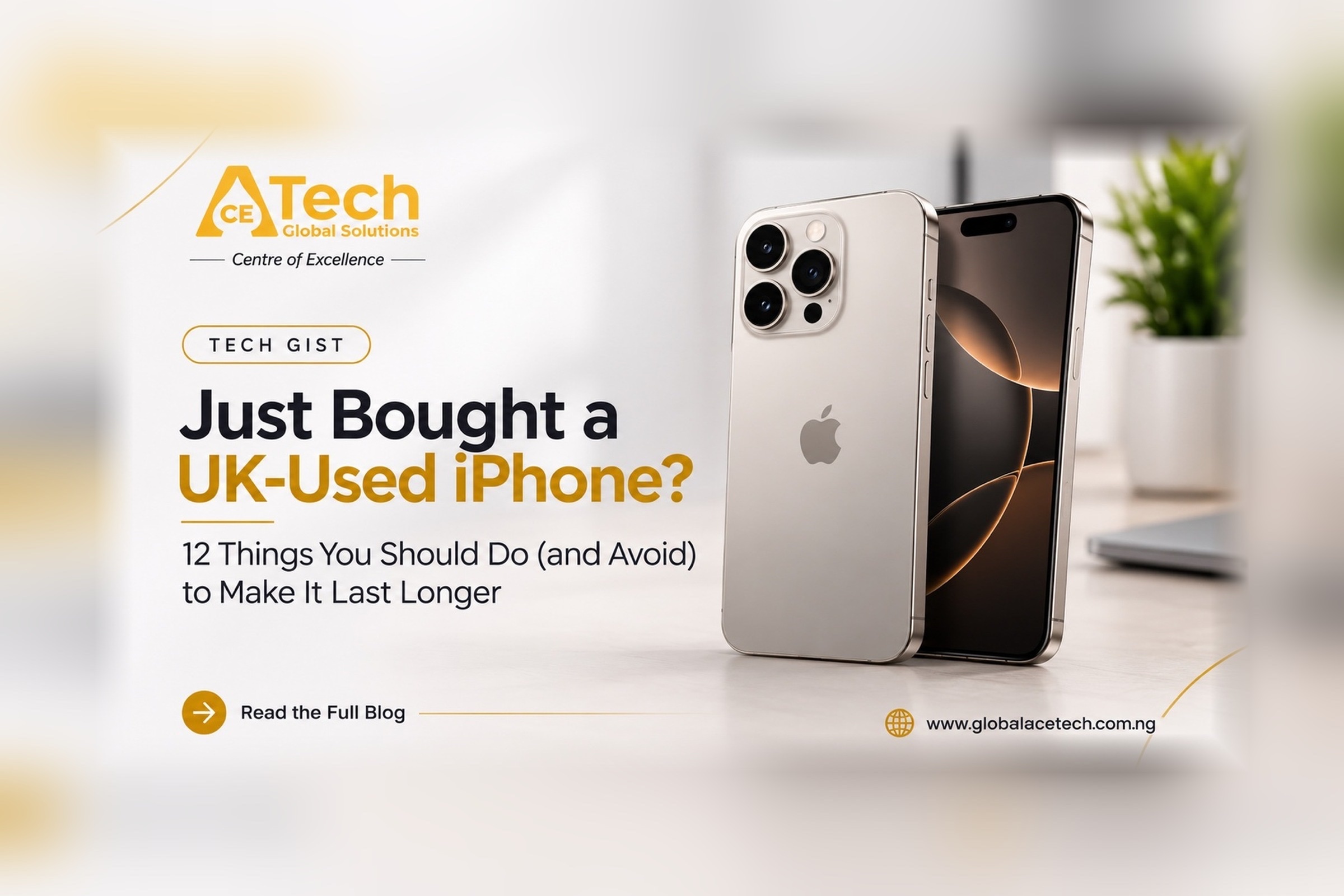
Just Bought a UK-Used iPhone? 12 Things You Should Do (and Avoid) to Make It Last Longer
Buying a UK-used iPhone can be an excellent way to enjoy Apple’s premium technology without paying the price of a brand-new device. However, how you inspect, configure, charge, and maintain your iPhone after purchase can significantly affect your experience and its long-term reliability.
Whether you’ve just purchased an iPhone 11, 12 Pro Max, 13 Pro, 14 Pro Max, or a newer model, the right habits can help you get the most out of your device.
At Acetech Global Solutions, we believe buying a quality device is only the beginning. Knowing how to maintain it is equally important.
Here are the essential things you should do—and the mistakes you should avoid—after buying a UK-used iPhone.
- Check the Battery Health Immediately
One of the first things you should check when buying a UK-used iPhone is its battery health.
Unlike a brand-new iPhone, a used device has already accumulated charging cycles. Its battery capacity may have decreased depending on its age, usage, and previous charging habits.
What to do:
- Open Settings.
- Select Battery.
- Tap Battery Health & Charging, or Battery Health on supported older iOS versions.
- Check the Maximum Capacity percentage and any battery service recommendations.
A battery with a higher maximum capacity generally holds more charge than one with a lower capacity, although battery health alone does not determine overall performance.
If your iPhone displays a battery service warning, experiences unexpected shutdowns, or drains unusually quickly, have it assessed by a qualified technician.
What not to do: Don’t assume that every UK-used iPhone should have 100% battery health. The condition of the battery depends on the device’s age and previous usage. Also, don’t replace a battery that is functioning properly simply because its maximum capacity is below 100%.
- Inspect the Device’s Parts and Repair History
A UK-used iPhone may have been repaired before it reached you. Previous repairs are not necessarily a problem, but knowing what has been replaced can help you make informed decisions about maintenance.
What to do:
Go to Settings > General > About and look for Parts and Service History, if available on your model and iOS version.
Depending on the device, iOS may provide information about certain replaced components, such as the battery, display, or camera.
Test the following:
- Face ID or Touch ID.
- Front and rear cameras.
- Speakers and microphones.
- Charging port and wireless charging, where supported.
- Physical buttons and vibration.
- Wi-Fi, Bluetooth, and mobile network connectivity.
- Display responsiveness and brightness.
Check for unusual overheating, random restarts, or other warning signs.
What not to do: Don’t ignore malfunctioning features simply because the phone looks clean. Cosmetic appearance does not always reflect the condition of its internal components.
- Update Your iPhone to a Supported iOS Version
Software updates can provide security improvements, bug fixes, and new features. They can also address problems affecting battery performance or device stability.
What to do:
Open Settings > General > Software Update and check whether an update is available for your model.
Before updating:
- Back up your important data.
- Connect to a reliable Wi-Fi network.
- Ensure the battery is sufficiently charged or connect the phone to power.
- Allow the update to finish without interruption.
Keep your iPhone updated to the latest compatible iOS version that Apple provides for your model.
What not to do: Don’t assume that every older iPhone can run the newest iOS release. Also, avoid unofficial software modifications that could compromise security or cause instability.
Remember that battery consumption may temporarily increase after a major update while the phone completes background activities.
- Set Up Your Apple Account and Secure the Device
Your Apple Account is central to services such as iCloud, Find My, backups, and device synchronization.
What to do:
- Sign in with your own Apple Account.
- Enable two-factor authentication.
- Set a strong passcode.
- Enable Find My iPhone.
- Review your trusted phone numbers and account recovery options.
- Configure iCloud backups for important data.
If the phone is still linked to a previous owner’s Apple Account, ask the seller to remove it properly before completing the purchase or setup.
What not to do: Never buy a device that remains Activation Locked to another person’s account with the expectation that an unofficial bypass will permanently solve the problem.
A legitimate seller should be able to help ensure that the device is ready for use with your account.
- Use a Quality Charger and Charging Cable
Your iPhone’s battery is a rechargeable lithium-ion battery. It naturally loses some capacity over time, but excessive heat and poor-quality charging accessories can create avoidable problems.
What to do:
- Use a genuine Apple adapter or a reputable, appropriately certified alternative.
- Choose a good-quality charging cable compatible with your iPhone.
- Replace damaged cables and adapters.
- Keep charging accessories away from water and excessive heat.
- Use wireless charging accessories that meet the relevant safety and compatibility requirements.
What not to do: Avoid suspiciously cheap chargers, damaged cables, and accessories that become unusually hot or behave erratically.
Your iPhone manages its charging process, but that does not make every charging accessory safe.
- Protect Your iPhone from Heat
Heat is one of the most important environmental factors affecting lithium-ion battery longevity.
Leaving your iPhone in a hot car, exposing it to direct sunlight for extended periods, or using demanding applications while it is already overheating can increase battery temperature.
What to do:
- Keep your iPhone away from direct sunlight when possible.
- Charge it in a cool, well-ventilated environment.
- Allow it to cool naturally if it becomes unusually hot.
- Avoid placing it under pillows or bedding while charging.
- Follow any temperature warnings displayed by iOS.
What not to do: Don’t deliberately put your iPhone in a refrigerator or freezer to cool it down. Sudden temperature changes and condensation can damage the device.
If the phone repeatedly overheats during ordinary use, have it inspected.
- Don’t Obsess Over Keeping Battery Health at 100%
A common mistake among iPhone users is worrying excessively about every percentage point of battery health.
Lithium-ion batteries undergo chemical ageing. Their capacity gradually declines with use and time, even when they are properly maintained.
What to do:
Use Optimized Battery Charging where available. On supported models, consider the charging limit options offered in Settings > Battery.
If a charging limit suits your daily routine, it may help reduce the time your battery spends fully charged.
Charge your phone according to your needs rather than allowing battery-health anxiety to dictate your entire routine.
What not to do:
- Don’t believe that charging to 100% automatically damages your battery.
- Don’t assume that you must always disconnect at exactly 80%.
- Don’t deliberately drain the battery to 0% before charging it.
- Don’t repeatedly check Battery Health throughout the day.
A practical charging routine is more useful than constantly monitoring a number.
- Use a Protective Case and Screen Protector
Accidental drops and impacts can lead to expensive repairs, especially when dealing with premium iPhone models.
What to do:
Choose a suitable protective case and a quality screen protector. Consider a case with raised edges around the screen and camera module.
Clean the device with appropriate materials and remove dust or debris that could become trapped between the case and phone.
What not to do: Don’t assume that a screen protector makes your iPhone indestructible. It cannot guarantee protection against every impact, and it does not replace a protective case.
- Keep Your Storage Under Control
An iPhone with very little available storage may struggle to install updates, save photos, download applications, or perform certain tasks.
What to do:
Open Settings > General > iPhone Storage to see how much space remains.
You can free up space by:
- Removing applications you no longer use.
- Deleting unwanted downloads.
- Reviewing large video files.
- Managing old message attachments.
- Using iCloud or another reputable backup solution for important photos and documents.
What not to do: Don’t delete important files without confirming that you have a backup. Also, avoid installing suspicious cleaner applications that promise unrealistic performance improvements.
- Avoid Installing Unknown Profiles and Applications
Security matters just as much as battery life.
Unknown configuration profiles, unofficial application installations, and suspicious links can compromise privacy or alter how your device operates.
What to do:
- Install applications through trusted sources.
- Review Settings > General > VPN & Device Management for profiles you do not recognize.
- Remove unfamiliar configurations only after confirming they are unnecessary and safe to remove.
- Keep your passcode and Apple Account credentials private.
What not to do: Don’t install a configuration profile simply because a stranger promises free internet, free subscriptions, or improved battery performance.
If a used phone is supervised or managed by an organization, ask the seller to resolve the situation before purchase.
- Don’t Expose Your iPhone to Water Unnecessarily
Some iPhone models have water-resistance ratings, but water resistance is not the same as waterproofing.
Resistance can also diminish with normal wear, impact damage, and previous repairs.
What to do:
Keep your device away from unnecessary exposure to water, liquids, and excessive moisture.
If it gets wet, disconnect charging accessories and follow Apple’s guidance for drying the device before attempting to charge it through a connector.
What not to do:
- Don’t deliberately test water resistance.
- Don’t charge a wet connector.
- Don’t use rice as a drying method.
- Don’t use external heat to dry the phone.
Water damage may not be covered by Apple’s standard warranty, and liquid exposure can cause problems even when the phone initially appears to work normally.
- Monitor Your iPhone During the First Week
Your first few days with a UK-used iPhone are an opportunity to establish a baseline for its performance.
What to do:
Pay attention to:
- How long the battery lasts during your usual activities.
- Whether the device heats up during ordinary use.
- Whether Face ID, cameras, speakers, and connectivity work properly.
- Whether the phone restarts unexpectedly.
- Whether the charging port works consistently.
Check your purchase documentation and understand the seller’s warranty or return terms.
If you notice a fault, report it promptly rather than waiting until the end of a warranty period.
What not to do: Don’t ignore a recurring problem simply because the phone was purchased at a lower price than a new device.
A used iPhone can offer excellent value, but a good buying decision should be supported by proper inspection and after-sales assistance.
Final Thoughts: Make Your UK-Used iPhone Last
Buying a UK-used iPhone is not just about choosing the right model or finding an attractive price. It is also about understanding the device’s condition and developing habits that support its long-term reliability.
Check the battery, inspect the device, secure your Apple Account, use reliable charging accessories, protect the phone from heat and physical damage, and keep your software updated.
Most importantly, remember that batteries naturally age and that no maintenance routine can guarantee a specific lifespan.
Looking for a reliable UK-used iPhone?
At Acetech Global Solutions, we help customers make informed technology choices, with a focus on quality devices, practical guidance, and dependable customer support.
Visit www.globalacetech.com.ng to explore our offerings or contact our team for assistance in choosing an iPhone that suits your needs and budget.
Acetech Global Solutions — Centre of Excellence.
Blog 3
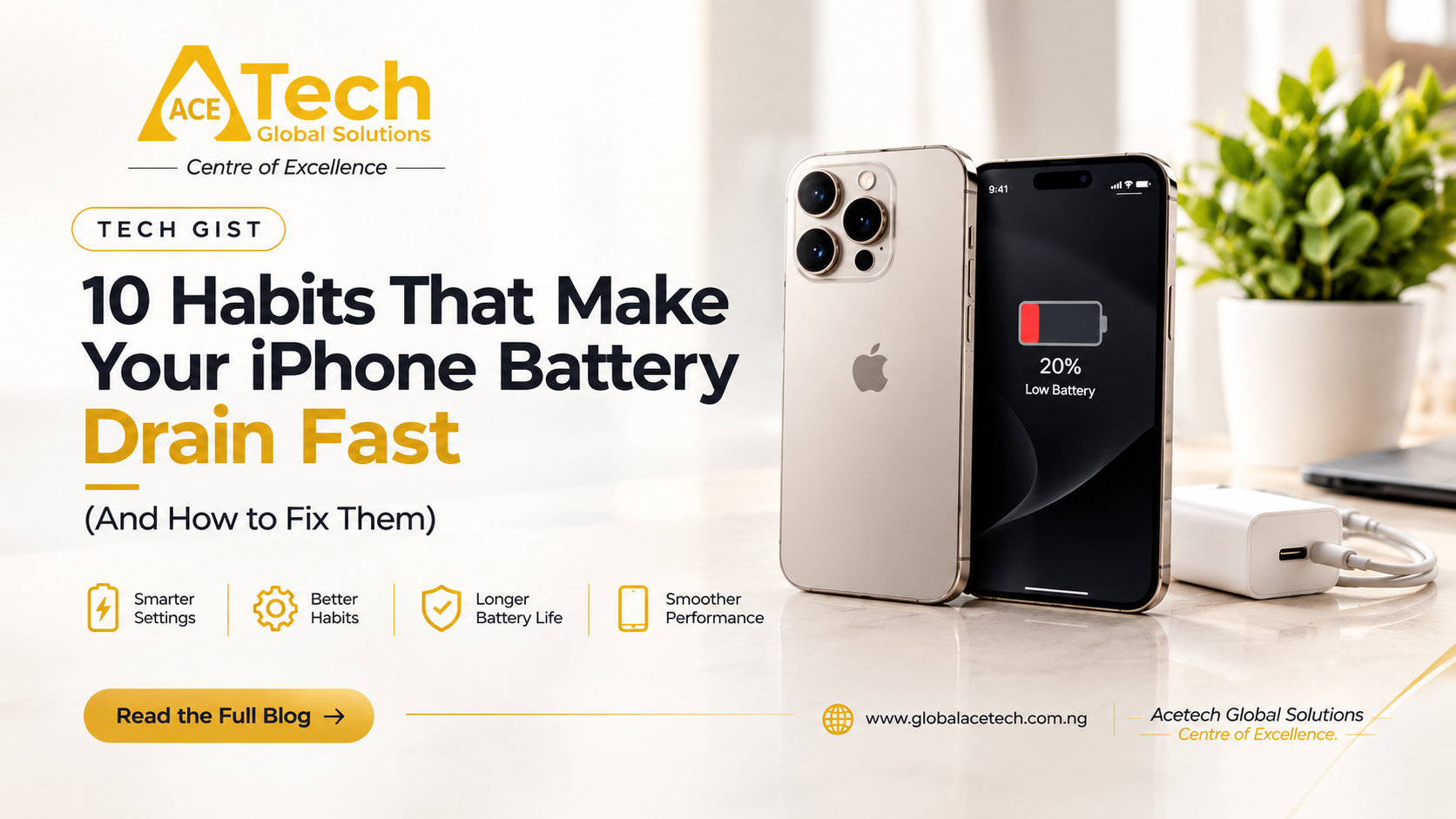
10 Terrible Habits That Make Your iPhone Battery Drain Fast (And How to Fix Them)
Have you ever charged your iPhone to 100% in the morning, only to find yourself searching for a charger before the day ends?
You’re not alone.
Fast battery drain is one of the most common frustrations experienced by iPhone users. Sometimes, the cause is an ageing battery. In other cases, everyday habits, demanding applications, poor network conditions, and unnecessary background activity may be responsible.
The good news is that some of these problems can be addressed without replacing your battery or buying a new phone.
At Acetech Global Solutions, we believe that understanding your device is the first step towards getting better performance from it.
Here are 10 habits that may cause your iPhone battery to drain faster than necessary—and what you can do about them.
- Keeping Your Screen Brightness Too High
Your iPhone’s display is one of its major power consumers. Running it at high brightness for extended periods can significantly increase energy consumption.
This is especially noticeable when watching videos, playing games, using social media, or navigating outdoors.
The bad habit: Keeping your brightness at maximum even when it is unnecessary.
How to fix it:
- Open Control Centre and adjust the brightness.
- Enable Auto-Brightness under Settings > Accessibility > Display & Text Size.
- Reduce the time before your screen automatically locks.
- Use Dark Mode if you prefer it, especially on OLED-equipped iPhones where displaying darker content can reduce power consumption.
You don’t need to make your screen uncomfortably dim. Find a brightness level that is comfortable for your eyes and appropriate for your environment.
- Allowing Too Many Apps to Use Your Location
Location services allow applications to provide navigation, weather updates, delivery tracking, and other useful features.
However, some applications may request location access more frequently than their functions require.
The bad habit: Giving every application unrestricted access to your location.
How to fix it:
Go to Settings > Privacy & Security > Location Services.
Review your applications and choose appropriate permissions, such as:
- Never.
- Ask Next Time or When I Share.
- While Using the App.
Where available, disable Precise Location for applications that do not need your exact position.
Keep location access enabled for services that genuinely require it, such as navigation when you are travelling.
The objective is not to disable every location feature but to prevent unnecessary access.
- Leaving Background App Refresh Enabled Without Reviewing It
Background App Refresh allows supported applications to update content when you are not actively using them.
This can be convenient, but it may contribute to power consumption depending on the applications involved and how frequently they refresh.
The bad habit: Allowing every installed application to refresh in the background without considering whether it is necessary.
How to fix it:
Go to Settings > General > Background App Refresh.
Review the available options and disable background refreshing for applications that do not need it.
For example, an application you rarely use may not need to update its content while sitting in the background.
However, remember that disabling Background App Refresh does not stop every form of background activity. Some applications and iOS services may continue performing essential tasks.
- Using Your iPhone While It Is Overheating
Heat and battery performance are closely connected.
Gaming, video recording, navigation, demanding applications, direct sunlight, and charging can all contribute to higher temperatures.
The bad habit: Continuing intensive activities when your iPhone is already unusually hot.
How to fix it:
- Move away from direct sunlight.
- Pause demanding games or applications.
- Stop charging temporarily if the phone becomes unusually hot.
- Allow the device to cool naturally.
- Avoid leaving it in a parked car exposed to the sun.
If the device repeatedly overheats during light use, investigate the cause rather than assuming it is normal.
Excessive heat can also accelerate long-term battery ageing.
- Blaming Every Battery Problem on Leaving Apps Open
Many iPhone users believe that swiping away every application in the App Switcher is necessary to save battery life.
That is not generally true.
iOS manages inactive applications by suspending most of them. Force-quitting and reopening applications repeatedly can sometimes use more energy than allowing the system to manage them.
The bad habit: Constantly closing every application simply because it appears in the App Switcher.
How to fix it:
Allow iOS to manage ordinary background applications.
Force-close an application when it becomes unresponsive or behaves abnormally, rather than doing it automatically after every use.
If a particular application consistently consumes excessive battery power, investigate that application instead of repeatedly closing everything.
- Ignoring Poor Mobile Network Reception
Your iPhone may consume additional power when trying to maintain a mobile connection in areas with weak cellular coverage.
This can happen in locations with poor signal strength, including some buildings, underground areas, and remote locations.
The bad habit: Assuming that your battery must be faulty whenever it drains quickly in an area with poor reception.
How to fix it:
- Move to an area with better reception when possible.
- Use Wi-Fi calling if your carrier supports it and you have configured it.
- Connect to reliable Wi-Fi when appropriate.
- Consider Airplane Mode when you genuinely do not need cellular connectivity and have no usable signal.
Do not disable connectivity features that you need for calls, messages, navigation, or emergencies merely to save a small amount of battery power.
- Keeping Too Many Notifications Active
Every notification does not necessarily consume a large amount of power. However, frequent notifications can wake the screen, activate connected services, and encourage you to check your phone repeatedly.
The bad habit: Allowing every application to send alerts, banners, sounds, and lock-screen notifications.
How to fix it:
Go to Settings > Notifications.
Review your applications and disable unnecessary alerts.
Consider turning off lock-screen notifications for applications that do not require immediate attention.
You can also use Focus modes to reduce interruptions during work, sleep, or other activities.
This may help reduce unnecessary screen activity while making your iPhone less distracting.
- Using Power-Hungry Applications for Hours Without Realising It
Some applications naturally demand more energy than others.
High-intensity games, video streaming, prolonged video calls, camera recording, and navigation can all consume considerable power.
Social media applications can also use significant energy depending on screen time, video playback, network conditions, and background activity.
The bad habit: Assuming every application should consume the same amount of battery.
How to fix it:
Go to Settings > Battery and review battery usage.
Depending on your iOS version, you may see information about battery consumption by application, screen activity, and background activity.
If an application uses a large share of your battery, consider:
- Reducing unnecessary usage.
- Updating the application.
- Reviewing its permissions and background activity.
- Checking whether it is behaving abnormally.
Remember that high battery usage is not automatically evidence of a faulty application. An app you actively use for several hours may reasonably account for a large proportion of your battery consumption.
- Keeping Your iPhone Connected to Every Accessory and Service
Bluetooth, Wi-Fi, AirDrop, and connected accessories are useful features. However, their effect on battery life depends on how they are used and the surrounding conditions.
Bluetooth, for example, is generally designed to use relatively little power when connected to ordinary accessories.
The bad habit: Assuming every wireless connection is harmless in every situation—or, at the opposite extreme, turning off everything unnecessarily.
How to fix it:
- Disconnect accessories you are no longer using if they are contributing to a problem.
- Review applications that depend on nearby devices.
- Turn off features you genuinely do not need.
- Investigate unusual battery consumption rather than automatically disabling every wireless service.
For most users, there is no need to constantly switch Bluetooth and Wi-Fi off and on throughout the day.
Focus on actual usage and battery statistics instead of relying on myths.
- Ignoring an Ageing or Deteriorating Battery
Sometimes, the problem is not your habits at all.
Rechargeable lithium-ion batteries gradually lose capacity as they age. Their performance can also be affected by temperature, usage patterns, and their previous charging history.
A heavily used iPhone may no longer last as long as it did when the battery was new.
The bad habit: Spending time changing settings while ignoring clear signs of battery deterioration.
How to fix it:
Open Settings > Battery > Battery Health & Charging, or the corresponding Battery Health section on your iOS version.
Review the Maximum Capacity and any service recommendations.
Pay attention to symptoms such as:
- Unexpected shutdowns.
- Noticeably reduced battery life.
- Battery service warnings.
- Performance problems associated with battery condition.
- Unusual heating that cannot be explained by normal use.
If these symptoms persist, seek a professional assessment.
A battery replacement may be appropriate when the battery is genuinely deteriorated, but fast drainage alone does not prove that replacement is necessary.
Bonus: Three iPhone Battery Myths You Should Stop Believing
Myth 1: You Must Always Charge Your iPhone to 100%
The truth: You do not have to charge to 100% every time. Equally, occasionally charging to 100% is not automatically harmful. Use Optimized Battery Charging or a suitable charging limit if your model supports it and it fits your routine.
Myth 2: You Must Drain Your Battery to 0% Before Charging
The truth: Modern iPhones use lithium-ion batteries, which do not require routine full discharges. You can charge your device whenever convenient.
Myth 3: Using Your iPhone While Charging Always Damages the Battery
The truth: Ordinary use while charging does not automatically damage your battery. However, intensive gaming or other demanding activities may increase heat, especially while charging. Excessive heat is the greater concern.
How to Check What Is Actually Draining Your iPhone Battery
Before changing every setting on your device, examine its battery statistics.
Follow these steps:
- Open Settings.
- Select Battery.
- Review the battery usage information.
- Check which applications account for the most consumption.
- Look for indications of background activity or unusually high usage.
- Review Battery Health if available on your model.
Remember that the application with the highest usage is not necessarily faulty. It may simply be the application you use most.
Also consider whether your iPhone has recently received a software update, restored a backup, or experienced poor network coverage. These circumstances can temporarily increase battery consumption.
Final Thoughts: Better Habits Can Help, but Your Battery Has Limits
You do not need to disable every feature or turn your iPhone into a basic phone to achieve reasonable battery life.
Start with the settings that matter most: screen brightness, background activity, location permissions, network conditions, and demanding applications.
Protect your device from excessive heat, install compatible software updates, and check battery health when performance changes significantly.
Most importantly, distinguish between normal battery consumption, inefficient usage, and an ageing battery.
If your iPhone drains unusually quickly despite reasonable usage, a proper assessment can help identify the actual cause.
Need help with your iPhone?
Acetech Global Solutions provides gadget sales, maintenance services, consultation, and technology support to help customers make informed decisions about their devices.
Visit www.globalacetech.com.ng for more technology tips, product information, and support.
Acetech Global Solutions — Centre of Excellence.